
Compatibility
For UCCNC gas-plasma systems. The plugin ignores Z coordinates and is unsuitable for milling.
Attention! If you are interested in this software product, you can download it. The program will work in full-featured mode for 15 days.
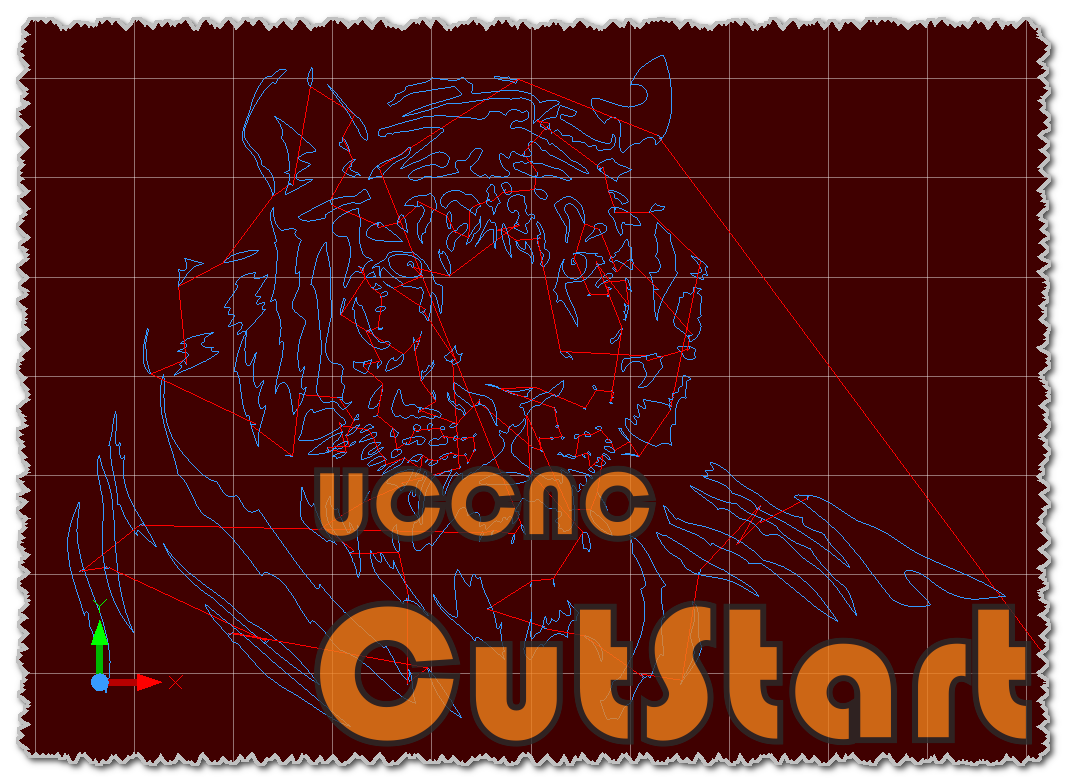
The plugin moves the tool to the trajectory point closest to the current position, or to the beginning of the nearest trajectory. In addition to moving, the plugin prepares for cutting to resume from the trajectory point.
UCCNCCutStart plugin video
The plugin works exclusively with UCCNC and is designed for gas-plasma cutting systems. Please note that the trajectory is processed without considering the Z coordinate , therefore this plugin is not suitable for milling CNC systems and other machines where the Z coordinate is critical.
Installation and launch
To launch the plugin, unpack the contents of the self-extracting archive into the plugins folder (usually "C:\UCCNC\plugins") and activate it after starting the program.
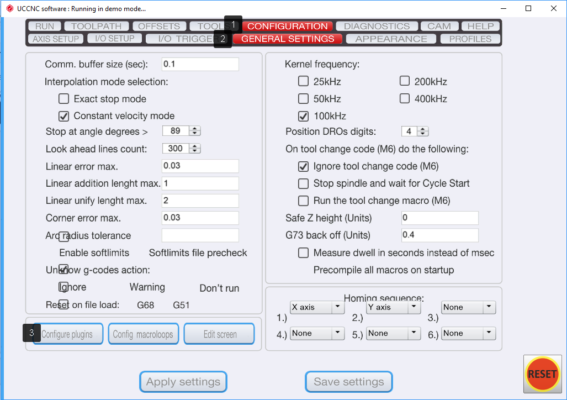
To activate, select the "Configuration → General settings" tab and click the "Configure plugins" button.
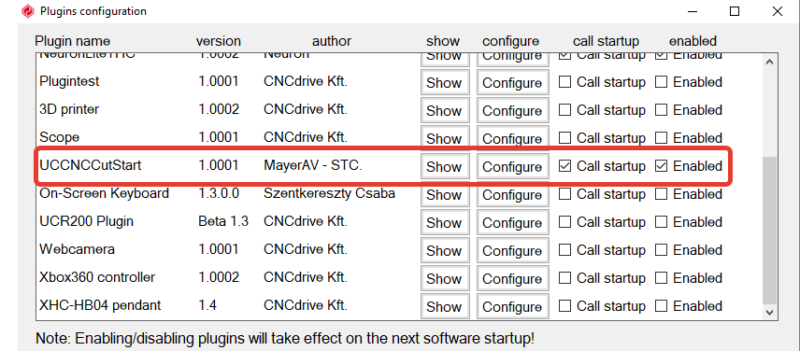
Then select "Call startup" and "Enabled" in the UCCNCCutStart plugin row. You can also configure it by clicking the "Configure" button.
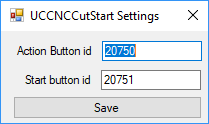
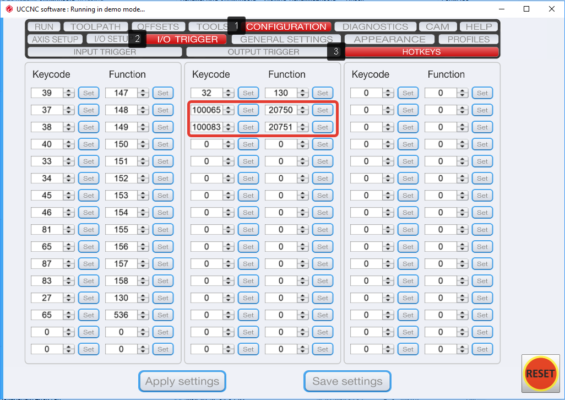
Here "Action Button Id" is the button ID that will trigger moving to the trajectory, and "Start button id" is the button ID that will trigger moving to the beginning of the trajectory. If you don't want to add buttons to the work screen, you can bind key combinations to these functions.
To do this, select the "Configuration → I/O Trigger → HotKeys" tab. On this tab, bind these commands to specific key combinations.
Software gallery
Select an image to inspect the original at full size. Screenshots show the software’s native interface.
Downloads and manuals
Use all features for 15 days after installation. A licence is required to continue afterwards.
Original supplier file services open in a new tab. Manuals, demonstrations and software screenshots may use a non-English interface.
Licensing and support
Email info@plasmicon.eu to confirm your quotation and purchase details. Read the licence guidance